How to Integrate AI Tools with Your Existing Tech Stack
Rodrigo Mahamud
·January 5, 2026
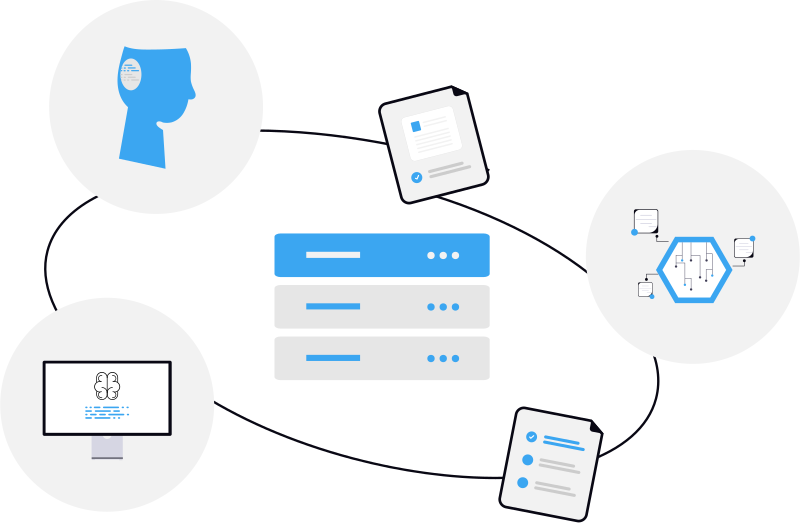
Adopting AI tools is only half the battle. The real magic happens when your AI assistant can seamlessly access and interact with the tools your team already uses every day.
Why Integration Matters
An AI assistant in isolation is like having a brilliant consultant who can’t access any of your company’s information. To provide real value, AI needs to connect with:
- Communication platforms like Slack, Teams, and email
- Knowledge bases like Notion, Confluence, and SharePoint
- CRM systems like Salesforce and HubSpot
- Project management tools like Jira, Asana, and Linear
- Cloud storage like Google Drive and Dropbox
The Integration Landscape
Modern AI assistants typically offer several types of integrations:
Native Integrations
These are pre-built connections that work out of the box. They’re usually the most reliable and feature-complete, offering:
- One-click setup
- Real-time synchronization
- Full feature support
- Automatic updates
API Connections
For tools without native integrations, API connections offer flexibility:
- Connect virtually any tool with an API
- Custom data mapping
- Tailored workflows
- Greater control over data flow
Zapier/Make Workflows
Automation platforms can bridge the gap:
- Connect thousands of apps
- Build custom automation workflows
- No coding required
- Event-triggered actions
Best Practices for Integration
1. Start with Core Tools
Don’t try to integrate everything at once. Begin with the 3-5 tools your team uses most frequently:
- Your primary communication platform (Slack or Teams)
- Your main knowledge repository
- Your CRM (if customer-facing)
- Your project management tool
2. Map Your Data Flows
Before setting up integrations, understand how information flows through your organization:
- Where is information created?
- Who needs access to what?
- What are your existing permission structures?
- How frequently does data need to sync?
3. Test in a Sandbox First
Always test integrations in a controlled environment before rolling out to your entire organization:
- Use test accounts or a staging environment
- Verify data accuracy
- Check permission inheritance
- Monitor for performance issues
4. Train Your Team
Even the best integration is useless if your team doesn’t know how to use it:
- Create documentation specific to your setup
- Run training sessions for key users
- Establish feedback channels
- Iterate based on real usage patterns
Security Considerations
When connecting AI tools to your business systems, security should be top of mind:
OAuth Authentication
Modern integrations should use OAuth for authentication, which means:
- No password sharing
- Granular permission control
- Easy revocation
- Audit trails
Permission Inheritance
The AI should respect your existing permission structures. If a user can’t access certain files in Google Drive, they shouldn’t be able to access them through the AI either.
Data Minimization
Only grant the AI access to data it actually needs. Most integrations allow you to:
- Select specific channels or workspaces
- Limit to certain file types or folders
- Exclude sensitive categories
Common Integration Challenges
Stale Data
Configure appropriate sync intervals based on data volatility. Real-time sync for communications, daily for static documents.
Duplicate Information
Establish a single source of truth for each type of information. Use cross-references rather than copies.
Permission Conflicts
Map your AI’s access model to your existing permission structure before setup. Document and communicate access policies.
API Rate Limits
Implement intelligent caching and batch processing. Most enterprise AI tools handle this automatically.
Measuring Integration Success
Track these metrics to ensure your integrations are delivering value:
- Time to answer: How quickly can users find information?
- Query success rate: What percentage of questions get satisfactory answers?
- User adoption: Are people actually using the AI?
- Support ticket reduction: Is the AI deflecting routine questions?
See How Referent Connects to Your Stack
Referent offers native integrations with Slack, Teams, Notion, Confluence, Salesforce, Google Drive, and dozens more—with one-click setup and real-time sync. Instead of piecing together a patchwork of connections, book a demo and we’ll show you how Referent plugs into the tools your team already uses, with zero disruption.
Conclusion
Successful AI integration isn’t just about connecting tools it’s about creating a seamless experience where your AI assistant becomes a natural extension of your existing workflows. Start small, iterate based on feedback, and always keep security at the forefront of your decisions.